

Integrations
Import files for the systems you already use
Dokira does not replace your accounting system and does not write into its database. After documents are approved, the Windows app prepares files that you import yourself.
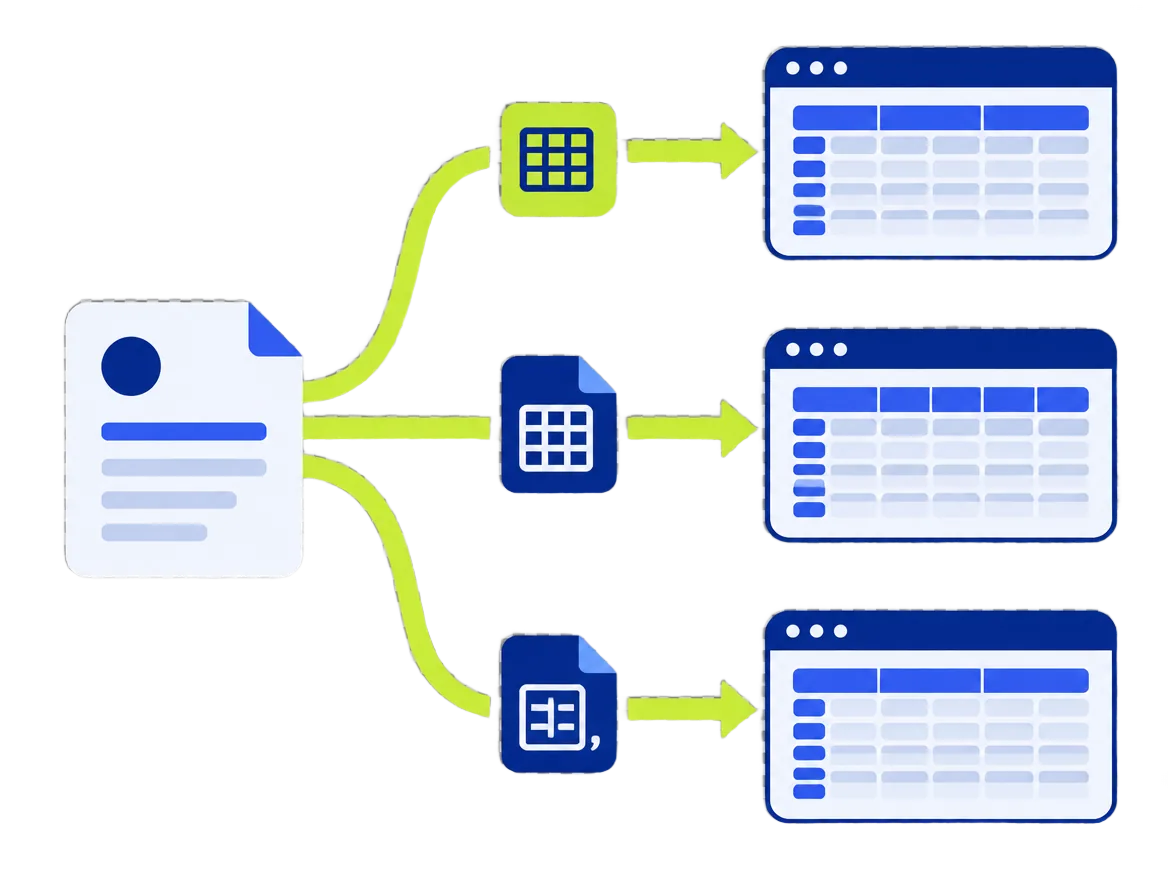
Export targets
| Target | Note |
|---|---|
| AutoCount | Import files for AutoCount, per client. |
| SQL Account | Import files for SQL Account, per client. |
| Excel (.xlsx) | Every approved field, one row per line item. |
| CSV | The same fields as Excel, for other systems. |
| PDF archive | Original files renamed by date, supplier and document number. |
The layouts of the AutoCount and SQL Account import files are being confirmed against the official import templates of both systems. Check a file before you import it.
How export works
- Documents are approved in Dokira.
- In the Windows app, choose the client and the export target.
- Dokira warns you about missing information, for example a creditor code for a new supplier.
- The file is written to the folder you choose, including a network folder.
- You import the file with the import function of AutoCount or SQL Account.
- Dokira marks the documents as exported so they are not exported twice.
The import steps in AutoCount or SQL Account happen in that system.
Data that is prepared
- Supplier and creditor code
- Document number, date and type
- Line items, quantities and prices
- Tax codes and tax amounts
- Grand total and currency
Known limits
- There is no direct connection to the ledger's database. You import a file.
- Bukku, Xero, QuickBooks and other systems: use Excel or CSV.
- Exports are made in the Windows app. The phone apps do not export.
Related guides
AutoCount, SQL Account, Microsoft, Windows, Apple, App Store, iPhone, iPad, Google Play and Android are trademarks of their respective owners. Dokira is not affiliated with or endorsed by them.